Epic Games Fortnite problems are something almost every player experiences at some point. Fortnite is one of the most popular online multiplayer games in the world, developed and maintained by Epic Games, and played daily by millions across PC, PlayStation, Xbox, Nintendo Switch, and mobile platforms.
Because Fortnite relies heavily on online servers, frequent updates, cross-platform compatibility, and high system performance, issues can appear unexpectedly. From login errors and server downtime to FPS drops and voice chat bugs, these problems can interrupt gameplay and frustrate players.
This comprehensive, human-written guide explains all major Fortnite problems, why they happen, and step-by-step fixes that actually work. Whether you are a casual player or a competitive gamer, this article will help you get back into the game smoothly.
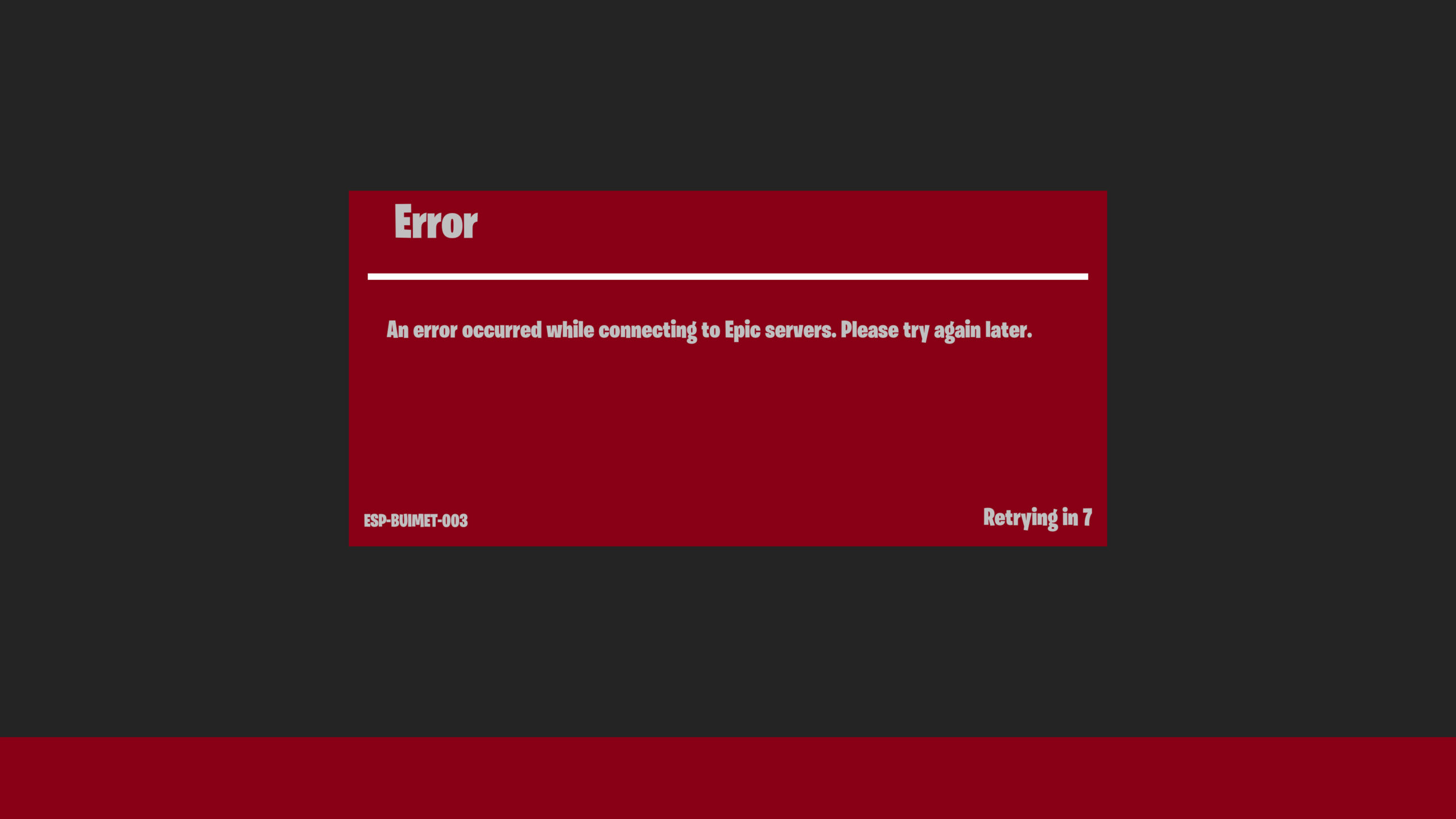
One of the most common Epic Games Fortnite problems is server downtime. Players may see errors like:
“Servers are currently unavailable”
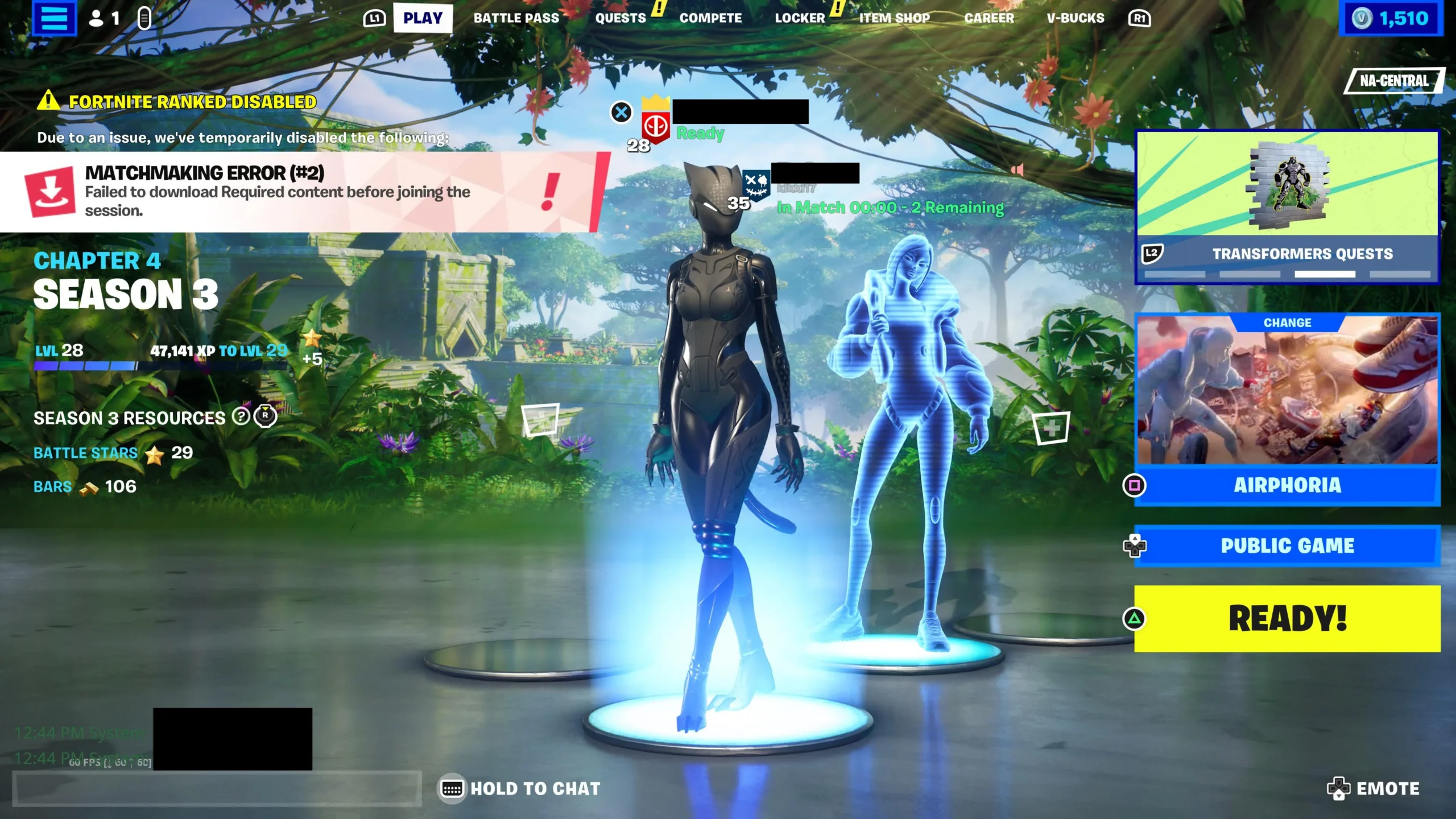
“Failed to connect to matchmaking”
Long loading screens or stuck lobbies
This usually happens during:
Major updates
New season launches
Live events
Unexpected server overloads
Fixes
Visit the Epic Games Server Status page
Check Fortnite’s official Twitter/X for announcements
Wait 30–60 minutes during peak outages
Restart Fortnite after servers come back online
❗ Important: Server issues cannot be fixed from your side. Avoid reinstalling the game unless Epic confirms a local issue.
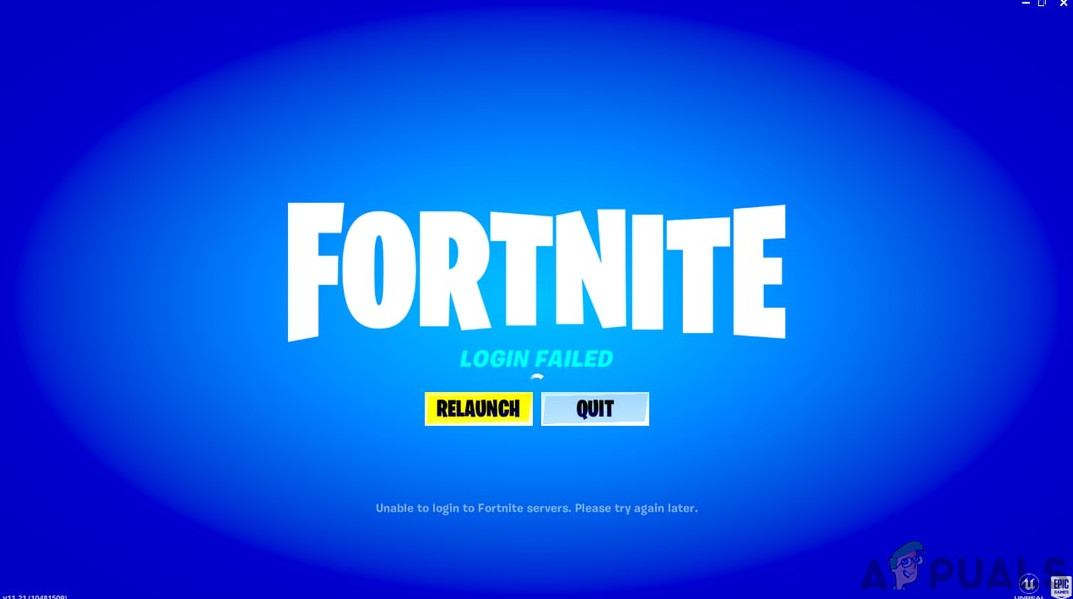
2. Fortnite Login Failed or Authentication Errors
Problem
Players often face:
“Login Failed”
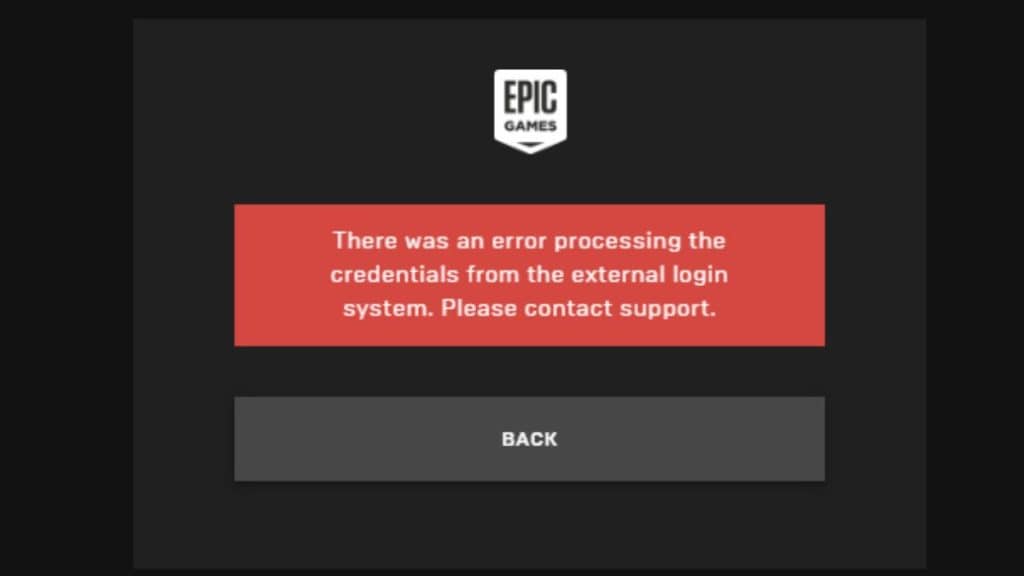
“Authentication Error”
“Unable to Sign In to Epic Games Account”
This usually occurs due to:
Epic Games account issues
Server authentication problems
Cached login data conflicts
Fixes
Log out of Epic Games Launcher
Restart your PC or console
Log back in using the correct credentials
Reset your Epic Games password if needed
Disable VPN or proxy temporarily
3. Fortnite Not Launching on PC
Problem
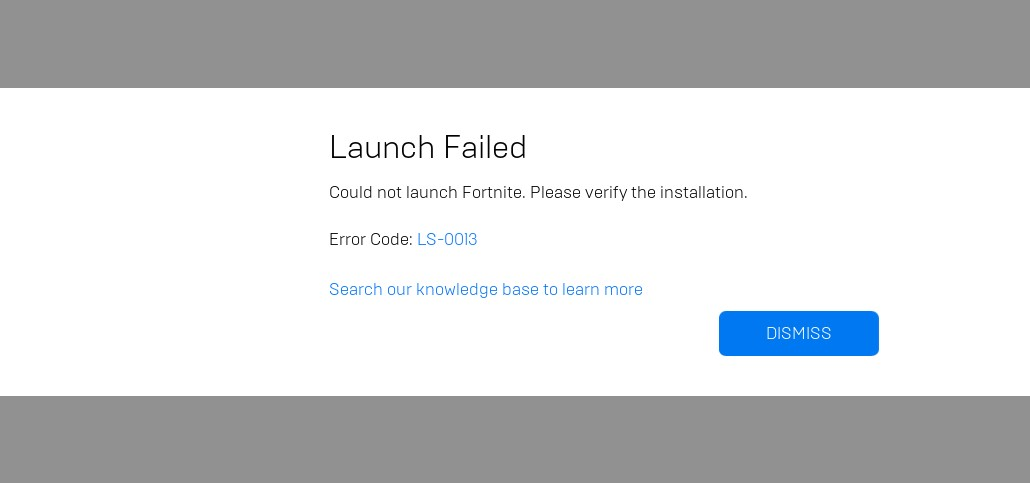
Clicking “Launch” but nothing happens, or Fortnite crashes immediately.
Common Causes
Corrupted game files
Outdated graphics drivers
Conflicting background apps
Fixes
Open Epic Games Launcher
Go to Library → Fortnite → Verify Files
Update GPU drivers (NVIDIA / AMD / Intel)
Run Epic Games Launcher as Administrator
Disable overlays (Discord, MSI Afterburner)
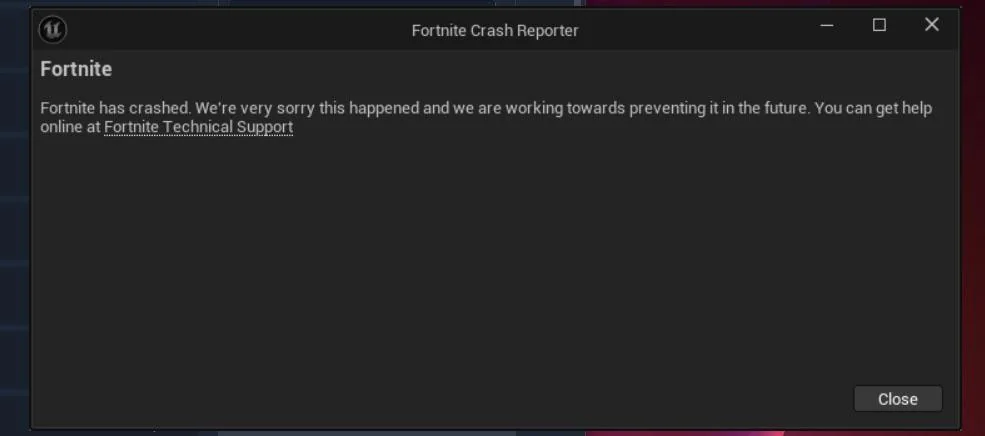
4. Fortnite Keeps Crashing Mid-Game
Problem
Fortnite crashes randomly during matches or at the loading screen.
Fixes
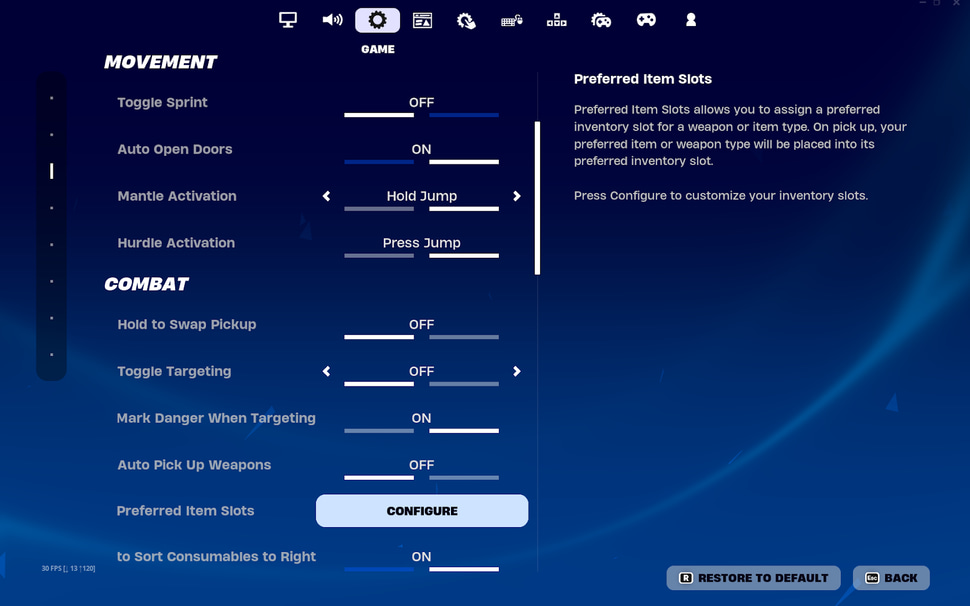
Lower in-game graphics settings
Switch to DirectX 11 instead of DX12
Close unnecessary background programs
Check CPU and GPU temperatures
Update Windows or console firmware
5. Low FPS and Lag Issues in Fortnite
Problem
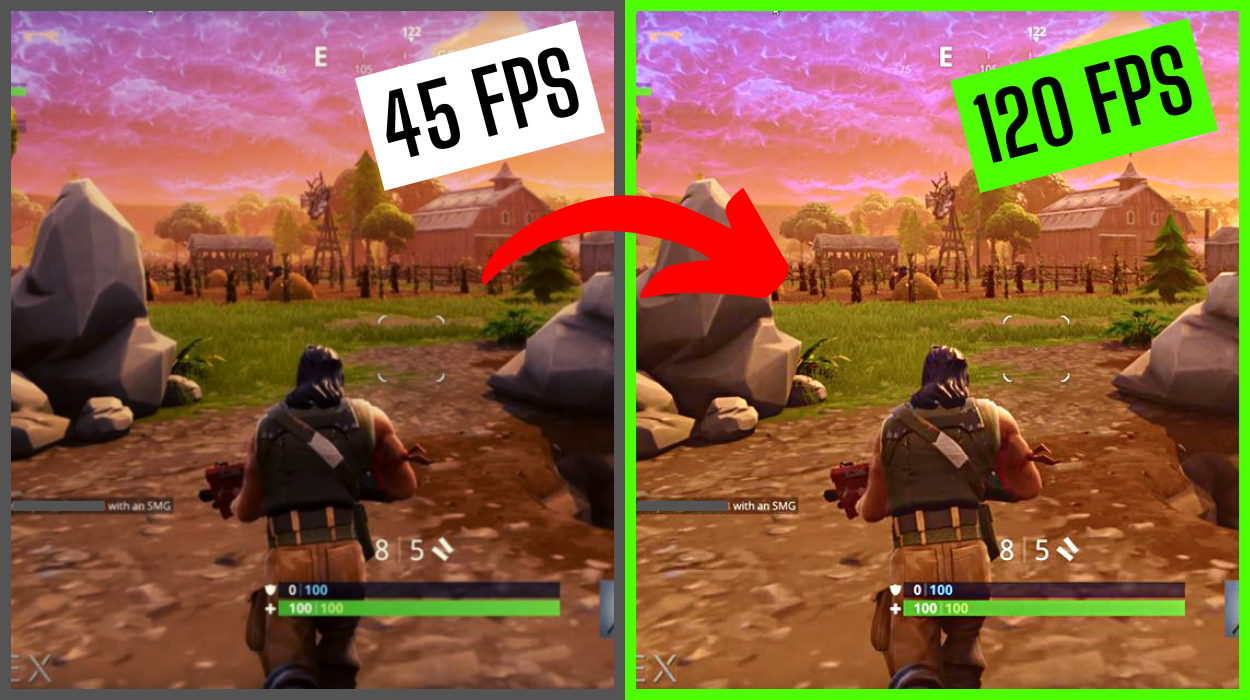
Stuttering, FPS drops, and lag spikes are major Fortnite performance problems.
Fixes
Set graphics to Performance Mode
Disable shadows and motion blur
Use fullscreen mode
Lower 3D resolution
Update GPU drivers
Use wired internet instead of Wi-Fi
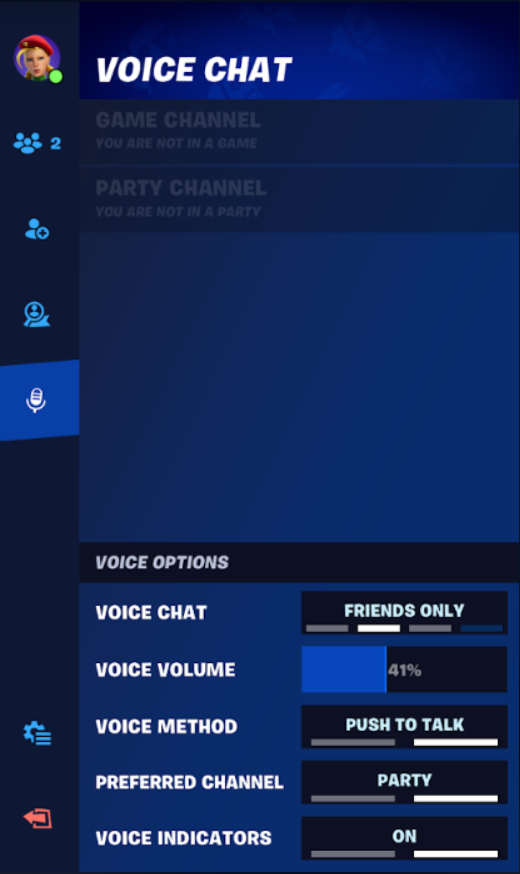
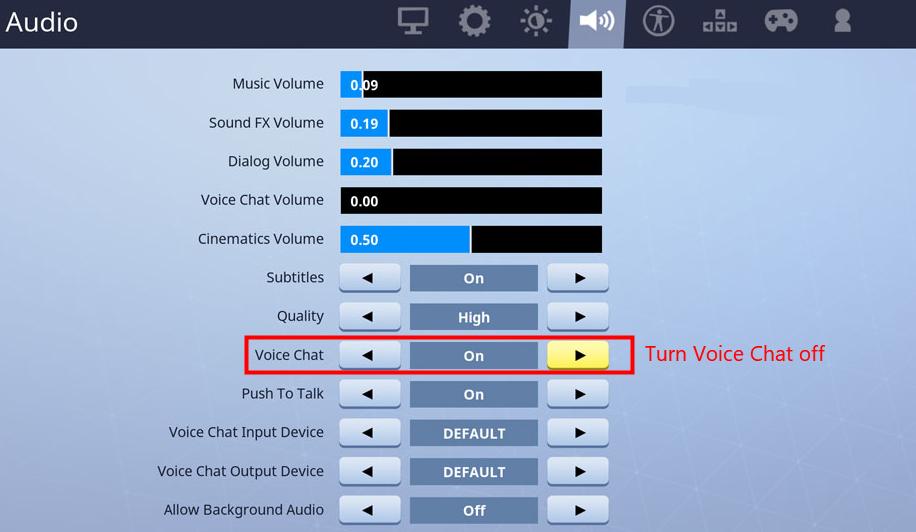
6. Fortnite Voice Chat Not Working
Problem
Players can’t hear teammates or microphone doesn’t work.
Fixes
Check Fortnite audio settings
Select correct input/output device
Enable voice chat
Restart Fortnite
Check console or PC mic permissions
7. Fortnite Matchmaking Errors
Problem
Players get stuck in queue or can’t find matches.
Fixes
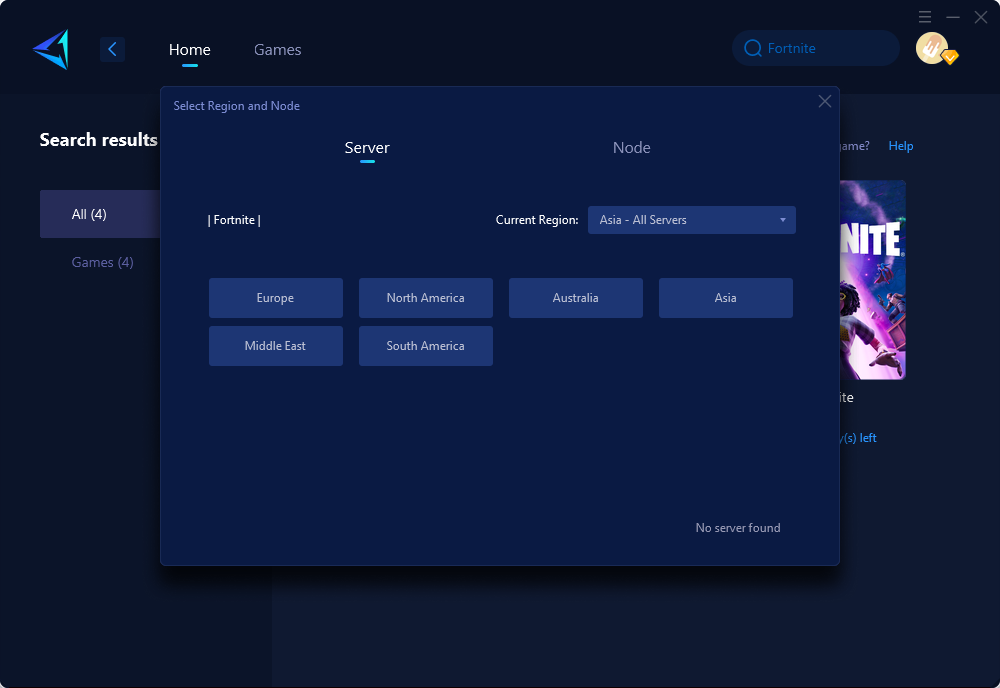
Change matchmaking region
Restart Fortnite
Switch game mode (Solo → Duos → Squads)
Wait during peak hours
8. Fortnite Update Download Stuck or Slow
Problem
Updates freeze or download extremely slowly.
Fixes
Restart Epic Games Launcher
Pause and resume download
Clear launcher cache
Change DNS to Google (8.8.8.8)
Disable bandwidth limit in launcher settings
9. Fortnite Error Codes Explained
Common Error Codes
LS-0013 – Game launch failure
Error 91 – Party join issue
Error 93 – Party capacity full
Fixes
Restart Fortnite
Verify game files
Restart router
Try Solo mode
10. Fortnite Controller Not Working
Problem
Controller input doesn’t register or feels delayed.
Fixes
Enable controller input in settings
Disconnect and reconnect controller
Update controller firmware
Disable Steam Input if on PC
11. Fortnite Cross-Platform Issues
Problem
Friends don’t appear online or can’t join cross-platform parties.
Fixes
Enable cross-play in settings
Restart Fortnite
Re-add Epic Games friends
Ensure everyone updated the game
12. Fortnite Mobile Problems
Common Issues
App crashes
Touch controls lag
Overheating
Fixes
Lower graphics settings
Close background apps
Keep device cool
Install latest Fortnite mobile build
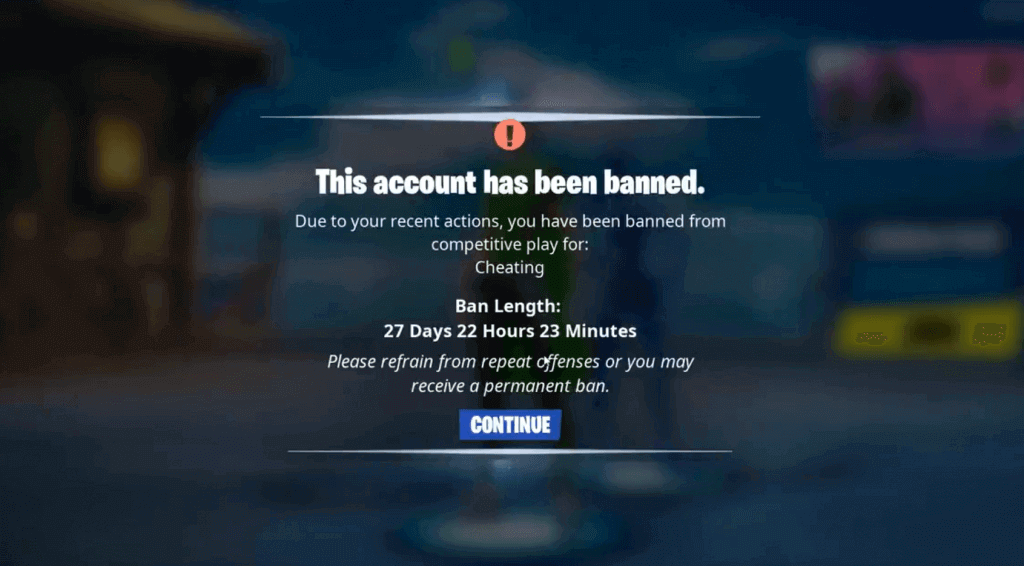
13. Fortnite Account Bans and Suspensions
Problem
Accounts get banned due to:
Cheating software
Exploits
Toxic behavior
Fix
Submit appeal through Epic Games support
Avoid third-party mods
Follow Fortnite community guidelines
14. Fortnite Item Shop Not Loading
Fixes
Restart Fortnite
Check Epic Games servers
Verify payment method
Clear launcher cache
Conclusion
Epic Games Fortnite problems are frustrating, but most of them have simple and effective fixes. Whether it’s server downtime, FPS drops, login errors, or voice chat issues, understanding the root cause helps you solve the problem faster.
Fortnite is a constantly evolving game, and regular updates sometimes bring temporary issues. Keeping your system updated, maintaining a stable internet connection, and following official Epic Games channels can save you a lot of time and stress.
If a problem persists after trying all fixes, contacting Epic Games Support is always the safest option.
FAQs: Epic Games Fortnite Problems
Q1: Why is Fortnite not working today? Usually due to server maintenance, updates, or unexpected outages.
Q2: How do I fix Fortnite crashing on PC? Verify game files, update drivers, and lower graphics settings.
Q3: Why is Fortnite lagging even with good internet? High server load, background apps, or incorrect graphics settings can cause lag.
Q4: Can I fix Fortnite server issues myself? No, server issues must be resolved by Epic Games.
Q5: Is reinstalling Fortnite necessary for most problems? No. Try verifying files and restarting first.